
LineUp is designed to eliminate retention time variability in GC and HPLC chromatograms after the data has been collected. LineUp provides a choice between a simple graphical user interface and a Configure interface to allow alignment to one or more targets as a form of pattern recognition prior to completing the alignment task. Target chromatogram, original file and aligned file can be superimposed.
The LineUp GUI
 The LineUp GUI is designed to provide an interface where LineUp parameters can be set and the results of the alignment shown within the program, making it convenient to align, adjust parameters, and realign as part of a method development
  activity. Set a target, select if you want to use markers as part of the suite of options, and set the 6 alignment parameters to be used.
LineUp Configure
 Performing an alignment with LineUp couldn’t be easier. Simply choose the target chromatogram(s) to which you will align your samples, select the parameters LineUp will use, then click on Run to choose the samples and begin the processing. Note that you can choose more than a single target, and these targets can reside anywhere on your system. LineUp will compare each sample to each target, accepting the result from that target which best compares to the sample.
Run LineUp in Batch Mode
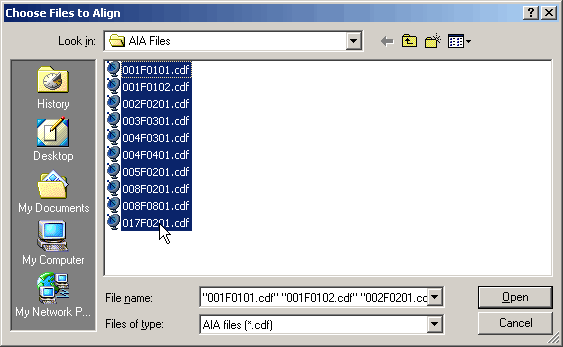 Once your target is set, you are ready to add files to be processed. LineUp can handle one or ten or enough samples to keep it busy overnight. You can continue to add samples to the batch list by navigating to other directories. Thus, it is not necessary to move all of your samples into one location. And, LineUp is smart about where to put its results: every aligned file will be placed in the same directory as the original, unaligned file, and will be named identically to the original but with a suffix of ‘M’ to indicate its modified state. So you can load this file into your chromatography software as you can any other file generated by your system.
Refine the Batch List before Starting
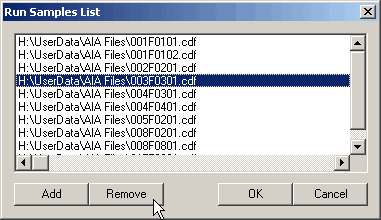 As you accumulate your list of files to be batched together, it is easy to add to or remove from the list. No need to worry about keeping track of the samples. Once processing has begun, LineUp will tell you how many samples have been processed and what the expected processing time is for each sample.
Refer to the LineUp Log for a History
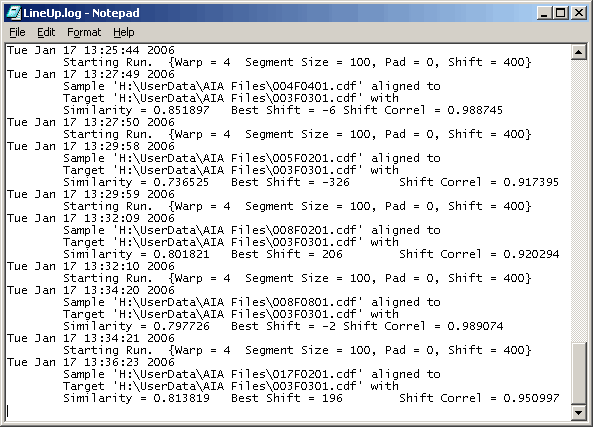 Every sample processed by LineUp has its biography recorded in the log file. Included are the time the analysis was begun, the processing parameters used, which target was compared, and a Similarity value that gives an idea of how well the final aligned profile matches the target.
 infometrix.com